
Lesson B4 Draw a Shape
The assignment is to get the robot to draw shapes. Start with the Square and the Triangle you made in lesson B3. Then try other shapes with 5, 6, or 8 or more sides.
There are also additional hints shape on the Challenge Hints and Answers.
To insert the pen you need to first remove the cap in the center of the robot by push the back end of the pen into the hole in the bottom. Then insert the pen in to the top hole until you feel it click. You can draw on paper (I like 11 by 17 inch paper but others sizes are fine) or on a dry erase board.



YOU need PENS for this Lesson. The suggested pens are the Crayola Washable Paint Bush Pens. BirdBrain sells them on their website. If you have a large class Amazon sells a large box of 40 pens in 8 colors. I have found another Brand that uses the same pen body that fits just right in the Finch 2.0.
ArtSkills Brush Tip Markers: box of 8 different colors. at Amazon 7.99 or a dollar a pen the day I bought them
Lesson B3 Make a Shape
Some time will will want to make the robot repeat actions. These are loops and you need to be sure to END the loop.
| Block Code | Text Code for Copy and Paste |
 |
use Libraries.Robots.BirdBrain.Finch Finch finch repeat 4 times finch:SetMotors(25,25) finch:Pause(1) finch:SetTurn("right", 90, 25) end finch:Stop() finch:Disconnect() |
New!
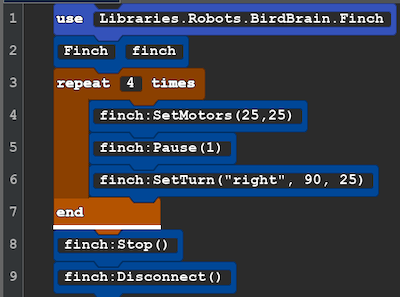
Line 3: Tell the robot how many times you want to repeat the following actions. They type of code is a control. This control makes a loop that will end. This is different type of number called an integer. Integers are whole numbers with a decimal or fraction. 1, 5, and 10 are integers. In this case a negative value is not possible, but integer do include 0 a nd negative values.
Line 7: end, this is where the repeat stops once it has reach the integer above is reached and then it move on to the lines after the end.
Explore: In the SetTurn action the integer 90 tell the number of degrees you want robot to turn in place. Try other integers and see what shapes it makes! You may need to change the number of repeats to complete a shape.
Challenge: What number of degrees and repeats do you need to make a triangle? (Challenge Hints and Answers)
Next Lesson : Lesson B4 Draw Shapes
Lesson B2 Turning
We encourage you to reuse the B1 Moving Code you and Just a a few new lines to move forward this these B1 Lessons
| Block Code Picture | Copy and Paste Code |
 |
use Libraries.Robots.BirdBrain.Finch Finch finch finch:SetMotors(25,25) finch:Pause(1) finch:SetTurn("right", 90, 25) finch:Stop() finch:Disconnect() |
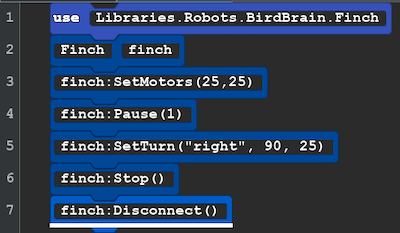
Line 5: SetTurn( can be "right" or "left", then number of degrees to turn, and the motor speed
New Idea After the code finch: what we find are actions, they tell the robot to do something. Inside the parentheses () are the parameters. Sometimes parameters are not needed such as finch:Disconnect(). Sometimes they are text like "right" and are enclosed in double quote marks and other times they can be intergers and numbers like 90 or 1 or 0.25.
Explore: Try changing the numbers in Lines 3 and 5. See what happens. Change the text "right" to "left". If you want to change line 4 you would use a number like .5 for a smaller movement 2 for a longer movement.
Save this code, you will reuse it in lesson B3.
Next Lesson: Lesson B3 Make a Shape
Lesson B1 Moving Robot
Here is the code and lesson plans for Unit one, Part 1
| Picture of Block View | Copy and Paste Code |
 |
use Libraries.Robots.BirdBrain.Finch |
Whats Happening?
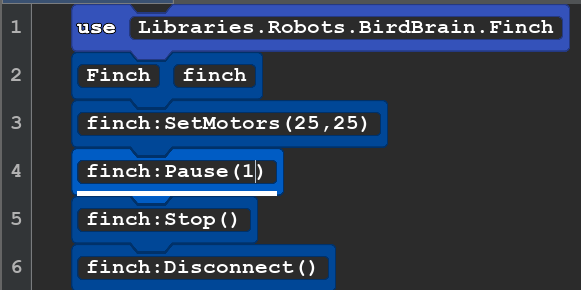
Line 1: All the information the computer and robot needs know to about how do robot things live in this library.
Line 2: We need a name to use to tell the computer we want it to do something with the robot. We choose "finch."
Line 3: finch tell the computer we are talking to the robot. SetMotors sets the speed for the left and right wheel.
100 is the fastest. Negative numbers make the robot go backwards.
Line 4: Pause gives a time for the robot to move. (1) is one second. This is a number so it could be (0.1) or to pause for a tenth of second or (2) would let it move for 2 seconds.
Line 5: Stop() This tells the robot to turn off the motors.
Line 6: The tells the computer and robot that you are done with the robot.
Explore: See what happens when you change the numbers in lines 3 and 4. Warning: if you make the pause too long you will be chasing your robot! 5 is a good limit on a table. 10 on the floor. Remember to try some negative numbers for line 3 and try numbers that are different for the left and right motors.
Next Lesson: Lesson B2 Turning
Beginning Lessons
Lesson B1 Moving Robot
Lesson B2 Turning
Lesson B3 Make a Shape
Lesson B4 Draw a Shape
We will start with a unit on motors. It comes in four mini lessons that all use the same code with addisions and changes. The last lesson adds the pen if it is available. These 4 lessons can be combined into 1 or 2 hour lessons.