
OL2Tail
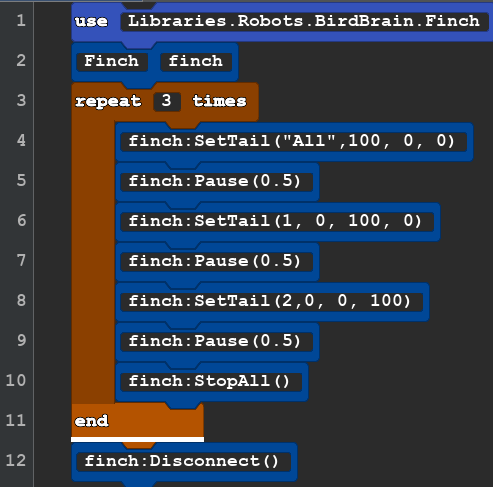
This is a multi part lesson where the same code is reused with additions and a few subtractions. The tail is 4 led lights at the back of the robot just in front of the microbit display. It use RGB parameters that are used with the beak light and one more parameter that tell which of the 4 lights you want to use.
|
OLTail1 (copy Beak2 and paste it into a new project) |
use Libraries.Robots.BirdBrain.Finch Finch finch repeat 3 times finch:SetTail("All",100, 0, 0) finch:Pause(0.5) finch:SetTail(1, 0, 100, 0) finch:Pause(0.5) finch:SetTail(2,0, 0, 100) finch:Pause(0.5) finch:StopAll() end finch:Disconnect() |
You can change your code by replacing old code with just a few clicks. In the Edit Menu you will find Replace or use CONTROL H. If you copied the Beak=2 code in to your new project you would want to replace SetBeak with SetTail. Use the replace all choice and changes all of this at once. You need add a another parameter that tell the robot what light you want to use. There are 4 lights 1,2,3, and 4. This goes in the first spot. You can also use text "All" in the first spot to effect all 4 lights at the same time. Text must be inside of "parentheses marks". |
OL2Tail2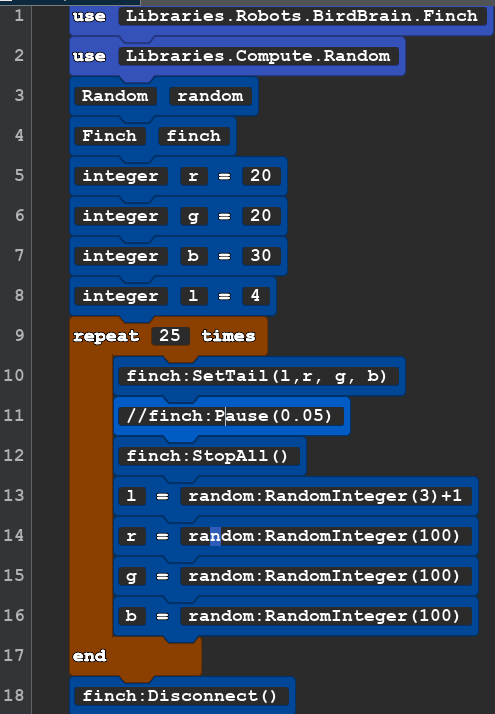 |
use Libraries.Robots.BirdBrain.Finch use Libraries.Compute.Random Random random Finch finch integer r=20 integer g=20 integer b =30 integer l=4 repeat 25 times finch:SetTail(l,r, g, b) //finch:Pause(0.05) finch:StopAll() l=random:RandomInteger(3)+1 r=random:RandomInteger(100) g=random:RandomInteger(100) b=random:RandomInteger(100) end finch:Disconnect() |
New: Variables, random and comments. the // (two slash marks) in line 11 mean to ignore this line. That is how we make a comment that does not effect the code, To make the flashing go slower just delete out the // and the pause will happen. |
OL1Beak
This is a multi part lesson where the same code is reused with addions and a few subtractions. The beak is the a single light at the front or nose of the Finch.
| Block Code | Text Code for Copy and Paste |
Notes |
Beak1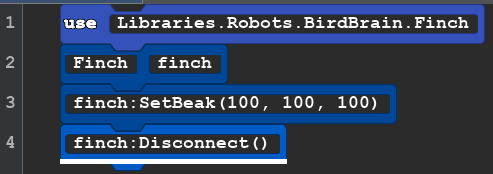 |
use Libraries.Robots.BirdBrain.Finch Finch finch finch:SetBeak(100, 100, 100) finch:Disconnect() |
Color Parameters
|
Beak2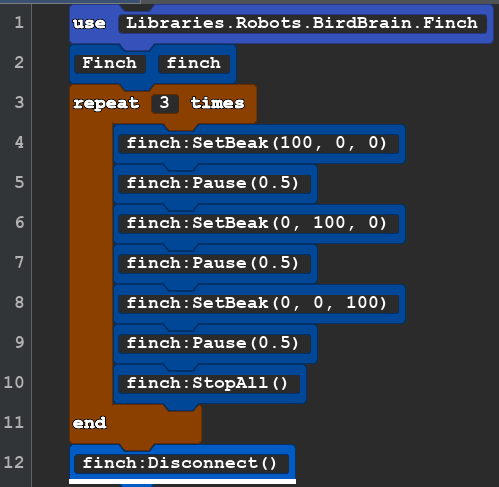 |
use Libraries.Robots.BirdBrain.Finch Finch finch repeat 3 times finch:SetBeak(100, 0, 0) finch:Pause(0.5) finch:SetBeak(0, 100, 0) finch:Pause(0.5) finch:SetBeak(0, 0, 100) finch:Pause(0.5) finch:StopAll() end finch:Disconnect() |
This code makes the beak blink Red, Green, Blue. Explore what other light effects you can create.
|
Beak3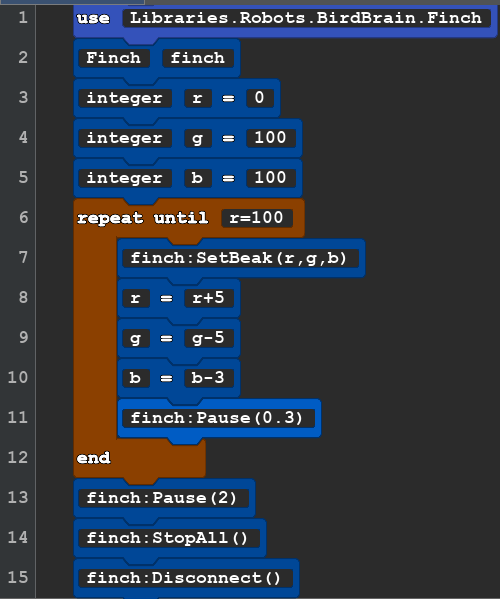 |
use Libraries.Robots.BirdBrain.Finch Finch finch integer r=0 integer g=100 integer b =100 repeat until r=100 finch:SetBeak(r,g,b) r=r+5 g=g-5 b=b-3 finch:Pause(0.3) end finch:Pause(2) finch:StopAll() finch:Disconnect() |
New: we are creating integers that change by addition and subtraction while the program runs. At the start red (r) is zero green (g) and blue (b) are 100. Then we create a loop that repeats until r = 100. Once r is 100 it skips down to the end and does the remain code. Each we loop we add 5 to r, subtract 5 from g, and subtract 3 from b. Feel free to change up the code to make a beak light show. REMEMBER: r,g,b must be a whole number between 0 and 100. If you change the formulas and it create a a number that less than 0 or greater than 100 it will fail! |
Table of ColorCodes(X,X,X)
Colors with text names (Wikipedia)
OL3Display
This is a 5 by 5 grid of small lights that are in the tail of the Finch. You can send letter number words and shapes.
| DISPLAY 1 TEXT | ||
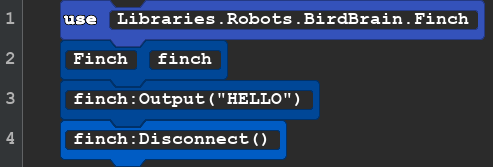 |
use Libraries.Robots.BirdBrain.Finch Finch finch finch:Output("HELLO") finch:Disconnect() |
Very short code that will send text to the microBit display in the tail of the Finch. the new action is Output. Any letters or numbers in the parameter() and enclosed in double quote marks " " will be displayed one character at a time on the display. Create your own clever messages for your robot to display. |
You also can choose exactly which of the 25 lights you would like to turn on or off. This is an an example of binary or one and zero code. One means the light is on zero means the light is off.
| Display2 | ||
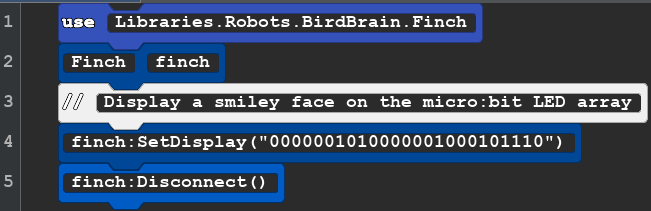 |
use Libraries.Robots.BirdBrain.Finch Finch finch //Display a smiley face on the micro:bit LED array finch:SetDisplay("0000001010000001000101110") finch:Disconnect() |
|
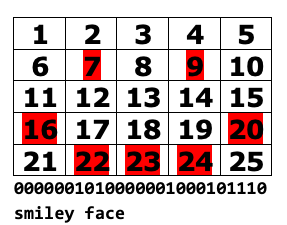 This grid shows what light you want to turn on 7 & 9 are the eyes so the 7th and 9th spots should be 1. How would make a frown?
There is a 26th light on the display. It is always on when the robot is on. It is to the top right of the display.
OK now it is your turn. Can you make a Square shape on the display. An answer is on the Challenge Hints and Answers page
Here is an image that may help you 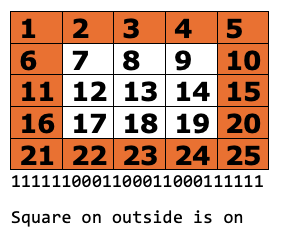
OM-More Motors
Add Lights and Sound while you make the Robot move.
- OM1 Forward and Back with Lights
- OM2 Add speech the OM1
- OM3 Make a Circle
- OM4 Speed Test
- OM5 Spiral Challenge
- OM6 Square Spiral Challenge
Now you know something about motors and lights let give you a challenge that uses those actions in a loop.
Task :Make the robot move forward and back 4 times. When the robot moves forward make the Beak Light Green, When moves backward make the tail lights Red. Remember to turn off the light when you are ready to got the other direction.
One possible solution is below but try it on your own first.
| OM1 Motor and Lights | Text Code for Copy and Paste | Notes |
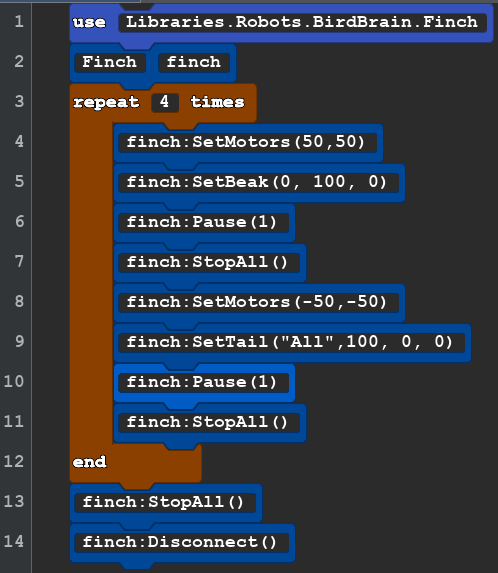 |
use Libraries.Robots.BirdBrain.Finch Finch finch repeat 4 times finch:SetMotors(50,50) finch:SetBeak(0, 100, 0) finch:Pause(1) finch:StopAll() finch:SetMotors(-50,-50) finch:SetTail("All",100, 0, 0) finch:Pause(1) finch:StopAll() end finch:StopAll() finch:Disconnect() |
Is your code different or the the same as the sample? If does what we asked the robot to do, then it is a successful code. Our code was 14 lines long. It is possible to do this task in 13 lines. Which line do you think was unneeded? (Line 13, we had already stopped everything in in the last repeat of line 11!) As a computer programer we want our code to be no more complicated than it needs to be. |
| OM2MotorSpeech | Text Code for Copy and Paste | Notes |
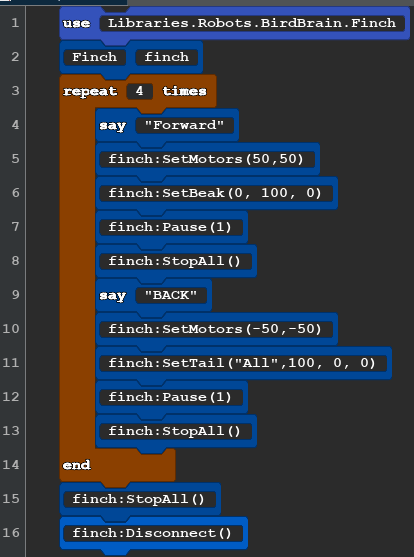 |
use Libraries.Robots.BirdBrain.Finch Finch finch repeat 4 times say "Forward" finch:SetMotors(50,50) finch:SetBeak(0, 100, 0) finch:Pause(1) finch:StopAll() say "BACK" finch:SetMotors(-50,-50) finch:SetTail("All",100, 0, 0) finch:Pause(1) finch:StopAll() end finch:StopAll() finch:Disconnect() |
This code is the same as the past program except for 2 line. The say command is apart the basic Quorum program. The robot does not have the ability speak on it's own. But when you run the code your computer will speak. say "any words you want" any text you you in the quotemarks will be spoken. |
| OM3 Motor Circle | Text Code for Copy and Paste | Notes |
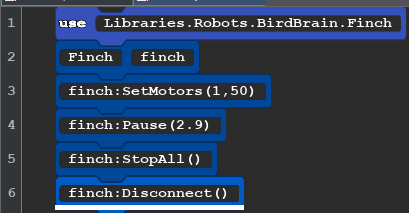 |
use Libraries.Robots.BirdBrain.Finch Finch finch finch:SetMotors(1,50) finch:Pause(2.9) finch:StopAll() finch:Disconnect() |
A Short code with a lot going on. What numbers would you need to change to make the robot go clockwise? can you make small or larger circles? This is a good activity to use your colored pens. |
Lets find more about the speed of the robot. We are going to make a simple code, Make changes to the speed each time we run the program and like good scientest we will record the data we make and even create a Graph
| OM4 SPEED TEST Block Code | Text Code for Copy and Paste | Notes |
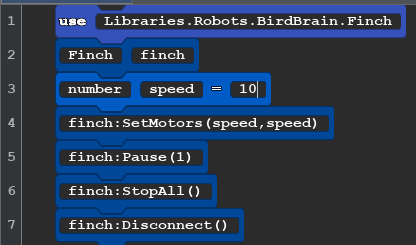 |
use Libraries.Robots.BirdBrain.Finch Finch finch number speed=10 finch:SetMotors(speed,speed) finch:Pause(1) finch:StopAll() finch:Disconnect() |
Create a chart like the one below. 1 does not move the wheels. Do this 10, 20, all the way to 100. Using the pen will make it easy to then measure each line created. If you have a big paper you can use the line as a graph! |
Test Robot Data
| SetMotor | Distance Travels | seconds | Speed CM per second | expect from base of 7 |
| 1 | 0,0,0 no movement | 1 | 0 no movement | |
| 10 | 7,7,7 | 1 | 7cm/sec | 7 |
| 20 | 14,14,14 | 1 | 14cm/sec | 14 |
| 30 | 21,21,21 | 1 | 21cm/sec | 21 |
| 40 | 24,24,24 | 1 | 24cm/sec | 28 |
| 50 | 30,30,30 | 1 | 30cm/sec | 35 |
| 60 | 38,38,38 | 1 | 38cm/sec | 42 |
| 70 | 41,41,42 | 1 | 41cm/sec | 49 |
| 60 |
What does the data tell us. It the case of the test robot on a slick white board it does not achieve the expect speed starting At motor speed 40. My hypothesis is that at speeds above 30 there is a 4 unit of slippage or spinning of the wheels before they engage due to the slick surface. How could we test this hypothesis? Was your data different?
OM5 Spiral Challenge (Answer below)
Your task is to make your robot draw a spiral.
| OM5 Spiral Block Code | Text Code for Copy and Paste | Notes |
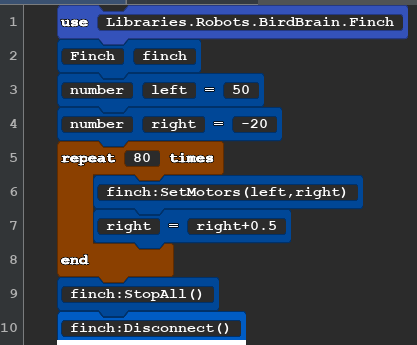 |
use Libraries.Robots.BirdBrain.Finch Finch finch number left = 50 number right = -20 repeat 80 times finch:SetMotors(left,right) right=right+0.5 end finch:StopAll() finch:Disconnect() |
There many ways to make your robot draw a spiral. Keep in mind:
Try adjusting the numbers to create small or larger spirals. |
OM6 Another way to move
There is another way move the robot called SetMove. It locks the wheels togather so they can only forward or backward.
finch:SetMove("forward", length, 50)
- text direction: The direction of movement ("forward" or "backward").
- number distance: The distance to travel in centimeters (Range: 0 to 500).
- number speed: The speed as a percent (Range: 0 to 100).
This if often used with the SetTurn command, length
finch:SetTurn("left",90,50)
- text direction: The direction of the turn ("right" or "left").
- number angle: The angle of the turn in degrees (Range: 0 to 360).
- number speed: The speed of the turn as a percent (Range: 0 to 100).
The following code will make a square spiral moving inward.
| OM6 Square Spiral Block Code | Text Code for Copy and Paste | Notes |
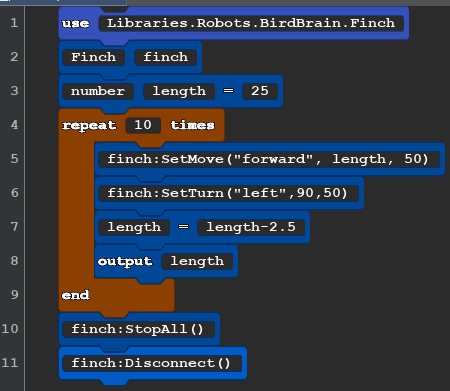 |
use Libraries.Robots.BirdBrain.Finch Finch finch number length =25 repeat 10 times finch:SetMove("forward", length, 50) finch:SetTurn("left",90,50) length=length-2.5 output length end finch:StopAll() finch:Disconnect() |
The output shows you the number that is the length in centimeters that the robot just moved in the consol on your computer. Can you make your robot make the same shape from small to large? |
OS Playing Sounds
Make sound and Music with your Finch.
| OS1 All the Notes | Text to Copy | Notes |
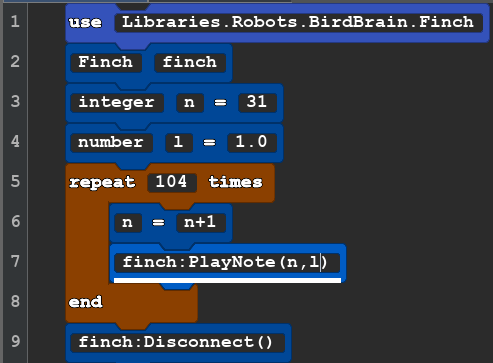 |
use Libraries.Robots.BirdBrain.Finch Finch finch integer n=31 number l=1.0 repeat 104 times n=n+1 finch:PlayNote(n,l) end finch:Disconnect() |
The sound of the Finch is not loud or high quality. The Finch 2.0 understands MIDI (Musical Instrument Digital Interface) and the first perimeter tells how high or low a note will be. This integer should be between 32 and 135. The second parameter is for how long the note should be in time. In line 4 and line 7 there is a variable named "l" (lower case L) It looks a lot like the number 1. Perhaps we should have used the "d" for duration. There are 104 different notes that the robot can play that's why we repeated 104 times. |
Next we have the Robot Play a "C" scale starting on middle C. Middle C is MIDI number 60.
| OS2 C Scale | Text to Copy | Notes |
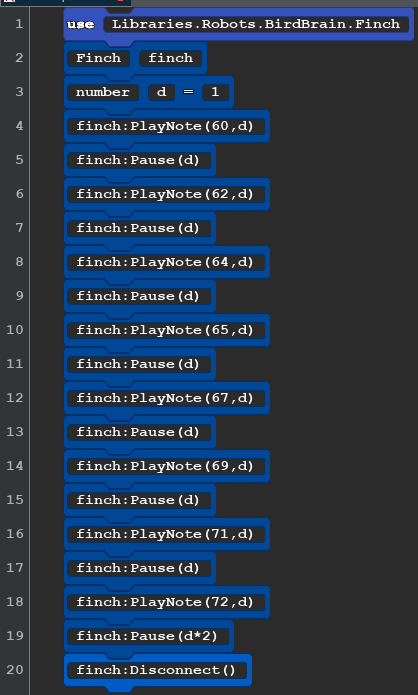 |
use Libraries.Robots.BirdBrain.Finch Finch finch number d=1 finch:PlayNote(60,d) finch:Pause(d) finch:PlayNote(62,d) finch:Pause(d) finch:PlayNote(64,d) finch:Pause(d) finch:PlayNote(65,d) finch:Pause(d) finch:PlayNote(67,d) finch:Pause(d) finch:PlayNote(69,d) finch:Pause(d) finch:PlayNote(71,d) finch:Pause(d) finch:PlayNote(72,d) finch:Pause(d*2) finch:Disconnect() |
The device that makes the sound on the finch robot is very small, it is more like a buzzer than it would be like a speaker. You may notice that some of the notes are louder, and some softer, Different Finch robots will have slightly different loudness levels on any particular note. In the instructions from the company that makes the finch it says that the duration of 1 should be one second. We have found that this is not the case and the duration is much shorter. For that reason, we have inserted a pause with the variable d. You can change variable d to make the notes have different duration. Here is a chart of all the MIDI NoteNames on the Finch! Finch MIDI codes. |
Now we will make the robot perform a chromatic scale. Let's start on the C above middle C (MIDI 72) and go 13 half steps ending on the next higher c. to go higher you will want to increase by just one MIDI number. Hint: The first code in sound OS1 played the whole chromatic scale that is possible to play on the Finch,
Below is a possible solution.
| OS3 Chromatic Scale | Text to Copy | |
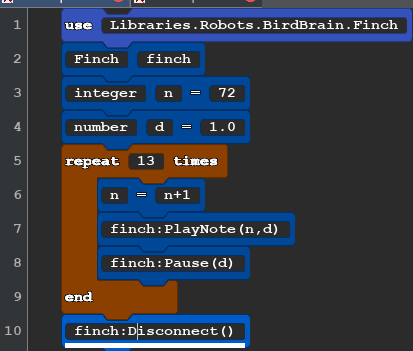 |
use Libraries.Robots.BirdBrain.Finch Finch finch integer n=72 number d=1.0 repeat 13 times n=n+1 finch:PlayNote(n,d) finch:Pause(d) end finch:Disconnect() |
There are 12 different sounds in the chromatics scale. The 13th is a repeat of the first note name one octave higher. 72 is the midi note for the C above middle C. |
| SO4 Beeps | ||
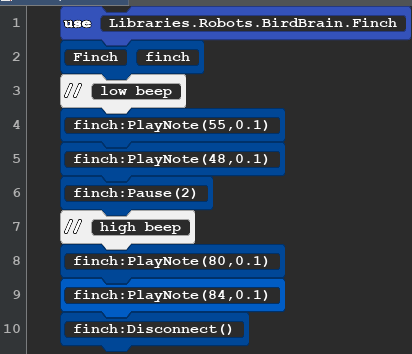 |
use Libraries.Robots.BirdBrain.Finch Finch finch //low beep finch:PlayNote(55,0.1) finch:PlayNote(48,0.1) finch:Pause(2) //high beep finch:PlayNote(80,0.1) finch:PlayNote(84,0.1) finch:Disconnect() |
You can use the PlayNote() to insert beeps in to your robot programs. experiment with different midi numbers to find the ones that sound best to you. Every Finch robot has it's voice. |
You can find more music codes in the advanced lessons.